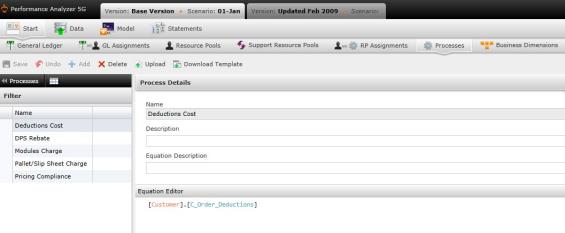
Processes are defined, consistent types of work performed within an organization. They are used in the model to accurately distribute costs from resources to business dimensions.
Processes are useful process analysis tools; they can help you identify customer- and product-specific issues, as well as areas for improvement within your organization.
Processes can be measured in whatever unit is most logical and useful for the organization. Common units include time, length, or weight, but you can use whatever unit your organization’s activities are focused on as long as you are consistent. Many organizations settle on time units in order to utilize Acorn software’s ability to measure resource capacity, but using time units is not required.
Driving costs from resources to processes involves interviewing employees within your organization to determine how much time they spend in what kinds of activities, choosing which activities to include in the model, and allocating resources costs to those processes.
 icon inside the black :Processes" heading. The screen will change to a list view.
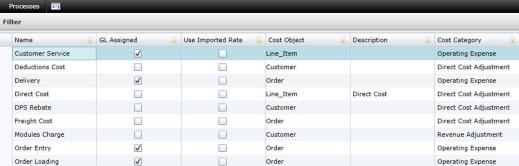
Confirm that you are on the Process screen where processes are listed (the  function on the calculation screen will be disabled).
Select . A new row will appear in the table. Type the new data inside the fields.
The Processes table contains the following columns:
Name: Name of process.
GL Assigned: This column will be checked if a general ledger item has been assigned to the process.
Use Imported Rate: This box will be checked if the process will be defined by the rate imported at the time the process was uploaded/added.
Cost Object: The cost object associated with the process.
Description: Description of the process. It is NOT mandatory that this column be filled.
Cost Category: Lists the type of cost the process generates.
To create the equation, select the  icon to navigate to the calculation screen.
Type "(" in the Equation Editor window to make the pop-up box appear. Choose from functions, cost objects/drivers/processes or process time variables to add to the equation. You can also add another process Equation to the equation by selecting a process in the Processes window, copying the equation and pasting it in the new process' Equation Editor.
 .
.
Related Topics:
Introduction to Business Rules
General Ledger to Resource Pool Assignments
Resource Pool to Resource Pool Assignments
Resource Pool to Process Assignments
Select  . A download pop-up screen will appear. Make your selections and select "OK."
Open the data template and confirm that the columns and how the data is presented is identical to your records.
Select  . The "Upload" panel will open.
Drag and drop files to the grayed area, or select "Browse Uploads.".
Select .
Select  at any time to delete any changes you have made. Select
  to delete an entire process equation.
See also:
General Ledger